
Startup guide · Chapter 1 of 13
Create your account and log in
Make your free company account, open the Admin login, and (optional) turn on two-step login.
About 10 minutesChecked against the app 30 October 2026
On this page
Watch it in Hindi
Before you start
- An email address you can open now. It becomes your Admin login.
- Optional: your mobile phone with Google Authenticator installed (free on Play Store / App Store), if you want two-step login. Microsoft Authenticator or Authy also work.
- A pen and paper, or a safe place, to keep 10 backup codes.
Step 1: Sign up free
Open app.thekaflow.com/start on a computer. Fill the card Create your company account:
- Company name — for example “ABC Infra Services”.
- Your web address — filled from the company name, like
abc-infra.thekaflow.com. ThekaFlow tells you at once if it is free. Use small letters, numbers or a hyphen. - Your name and Mobile.
- Email (your Admin login) and a Password of at least 8 characters.
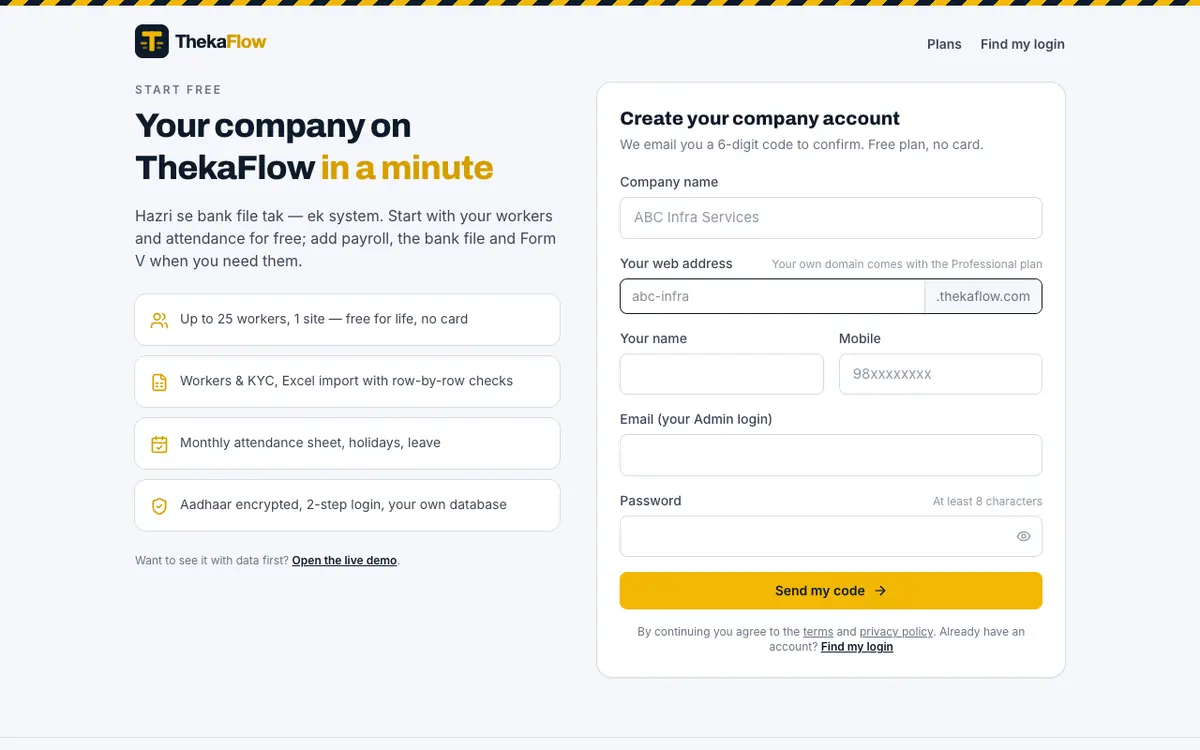
app.thekaflow.com/start — the free signup form. Tap to enlarge. Step 2: Enter the code from your email
Click Send my code. A 6-digit code comes to your email. It works for 15 minutes. No email? Check the spam folder, or click Send the code again.
Type the code and click Create my account. The screen Your company is ready shows your address, your Admin login and the worker app link. The same details come by email too.
Click Open my Admin login. Your company starts on the Free plan: up to 25 workers, 1 site and 2 staff logins (you + one more). See pricing for bigger plans.
Step 3: If the ThekaFlow team made your account
On a paid plan our team may set up the company for you. You get the address and the Admin login by email. Lost the address? Open app.thekaflow.com/start/find-login, type your email and click Email me my login.
Step 4: Know your login pages
Everyone in your company uses your own address. Only the end of the link changes:
- Admin — yourcompany.thekaflow.com/admin/login
- Supervisor — yourcompany.thekaflow.com/supervisor/login
- Finance / CA — yourcompany.thekaflow.com/finance/login
- Workers — yourcompany.thekaflow.com/worker/login (code or Aadhaar + date of birth, see Worker app)
- Suppliers — yourcompany.thekaflow.com/supplier/login (mobile + 6-digit PIN)
Step 5: Log in
Type your Email and Password and click Login. If you used the wrong page (for example a Supervisor on the Admin page), ThekaFlow shows an Open it link to the right one.
After 5 wrong passwords the login locks: 15 minutes for the Admin, 24 hours for others. The Admin can unlock a person from Staff Users.
There is no “forgot password” button. Supervisors and Finance users ask the Admin for a new password. The Admin writes to info@thekaflow.com.
Step 6: Turn on two-step login (optional, recommended)
Two-step login is optional. We recommend it for the Admin: your login can see every worker’s Aadhaar, bank and salary data and send money, and a code from your phone keeps it safe even if the password leaks (why).
Open Settings → Security & privacy → Your two-step login and click Set up with Google Authenticator:
- Open Google Authenticator on your phone. Tap + → Scan a QR code and scan the code on the screen. (Can’t scan? Type the key shown under the QR code.)
- Type the 6-digit code from the app in Code from the app and click Turn on.
- ThekaFlow shows 10 backup codes, only once. Write them down or click Copy and keep them safe. Then click I have saved them — continue.
- Want it for everyone with full data? Tick Require two-step login for Admin and Finance (recommended) on the same page. They then set it up at their next login (see Team).
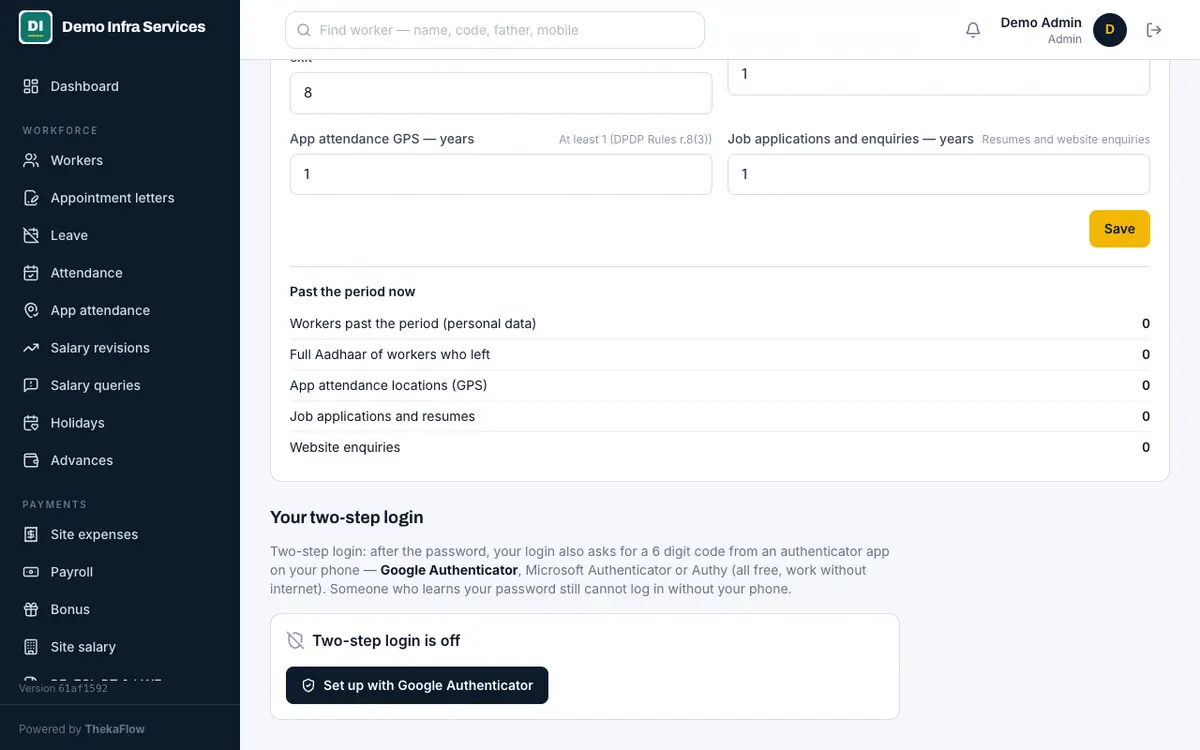
Settings → Security & privacy → “Your two-step login”. You can also set it up or make new backup codes here. Tap to enlarge. Step 7: Logging in with two-step on
Once two-step is on, type email and password, then the 6-digit code from Google Authenticator, and click Verify.
Lost your phone? Type one of your backup codes instead. Another Admin can also Reset your two-step login (see Team). If you are the only Admin, write to info@thekaflow.com.
Tips and common mistakes
- Use a company email that stays with the business, not a staff member’s personal email.
- If you turn on two-step login, keep the backup codes away from the phone. If the phone is lost, the codes are your way back in.
- Bookmark your Admin login page. Search engines do not show it.
- Want more workers or sites? Open Plan in the menu and click Ask to upgrade. Our team calls you and sends the invoice.
हिंदी में
- app.thekaflow.com/start खोलें — कंपनी का नाम, ईमेल और पासवर्ड भरें।
- ईमेल पर आया 6 अंकों का कोड डालें — आपका खाता तैयार।
- Admin login पर जाएँ: yourcompany.thekaflow.com/admin/login
- Two-step login ज़रूरी नहीं, पर Admin के लिए अच्छा है — Settings → Security में Google Authenticator से QR स्कैन करें।
- चालू करें तो 10 backup codes कागज़ पर लिखकर सुरक्षित रखें।
Read next