
Startup guide · Chapter 13 of 13
Worker app and supplier portal
Get your workers and labour suppliers on their own apps, and know what each of them sees.
About 10 minutesChecked against the app 30 October 2026
On this page
Plan: Worker app: Starter plan and above. Supplier portal: Professional and above.
Before you start
- Workers approved, with a date of birth.
- Workers with an Android phone or iPhone and internet.
- For suppliers: their mobile number.
Step 1: Worker login
Share yourcompany.thekaflow.com/worker/login (for example on WhatsApp). The worker logs in with Employee Code or Aadhaar Number, plus Date of Birth. No password, no OTP.
The app opens in Hindi; the English button switches language, and A / A+ makes the text bigger. In the browser menu, Add to Home screen puts it on the phone like an app.
Step 2: First time: the privacy notice
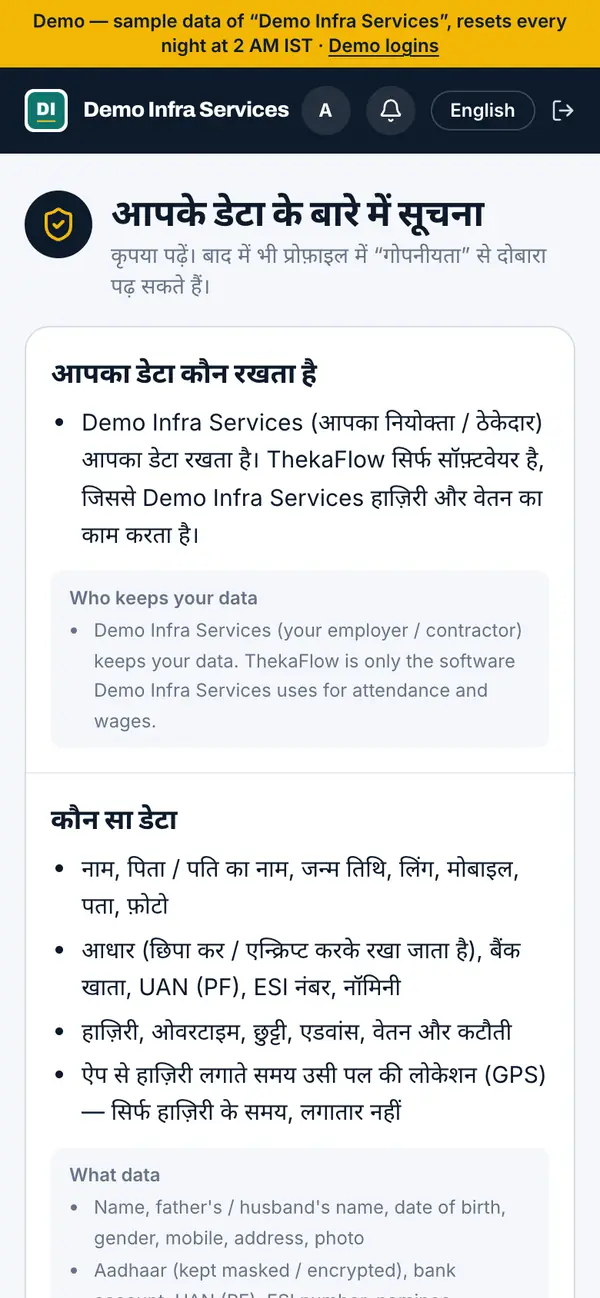
Before anything else the worker sees Notice about your data in Hindi and English — who keeps the data, what is kept and why — and taps मैंने पढ़ लिया / I understand. It can be read again any time from Profile.
The privacy notice in the worker app. Step 3: What the worker sees
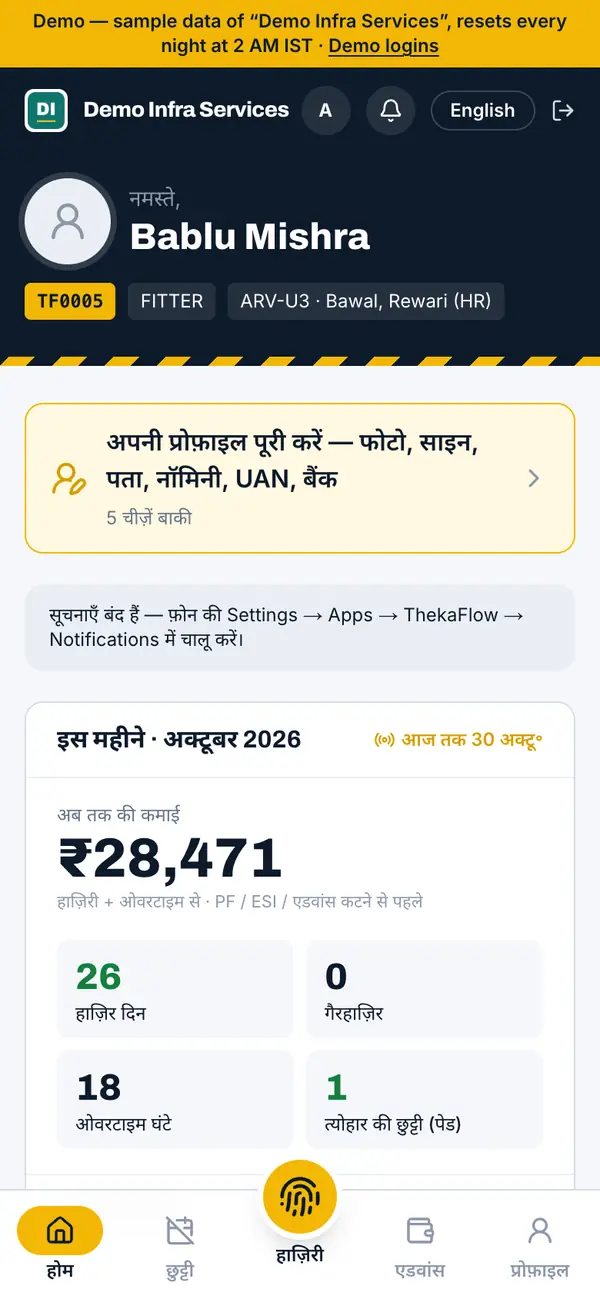
- Home — this month’s earnings so far, present days, OT, and pay & salary slips.
- हाज़िरी (Attendance) — mark today’s attendance with location (see Attendance).
- Leave — apply for leave and see its status.
- Advance — ask for an advance (if you allow it).
- Profile — work and personal details; Complete your profile asks for photo, signature, address, nominee, UAN and bank.
Worker app — home screen. Step 4: Salary slips and salary questions
After you click Release slips in payroll, the worker sees My salary slips and can Print / Save PDF. If something looks wrong, the worker taps Something wrong? Tell us; it reaches the supervisor and then the Admin under Salary queries.
Step 5: Notifications
Ask workers to tap Turn on for notifications, so they hear about approvals and slips.
Step 6: Give a supplier portal login
Click Suppliers, then the Supplier portal login icon on the supplier’s row. Tick Portal login is on, set a 6-digit PIN for the first login (or click Generate) and copy the Login link to share.
Step 7: What the supplier sees
The supplier logs in at yourcompany.thekaflow.com/supplier/login with the Mobile number and 6 digit PIN, and can change the PIN under Account. The portal opens in Hindi.
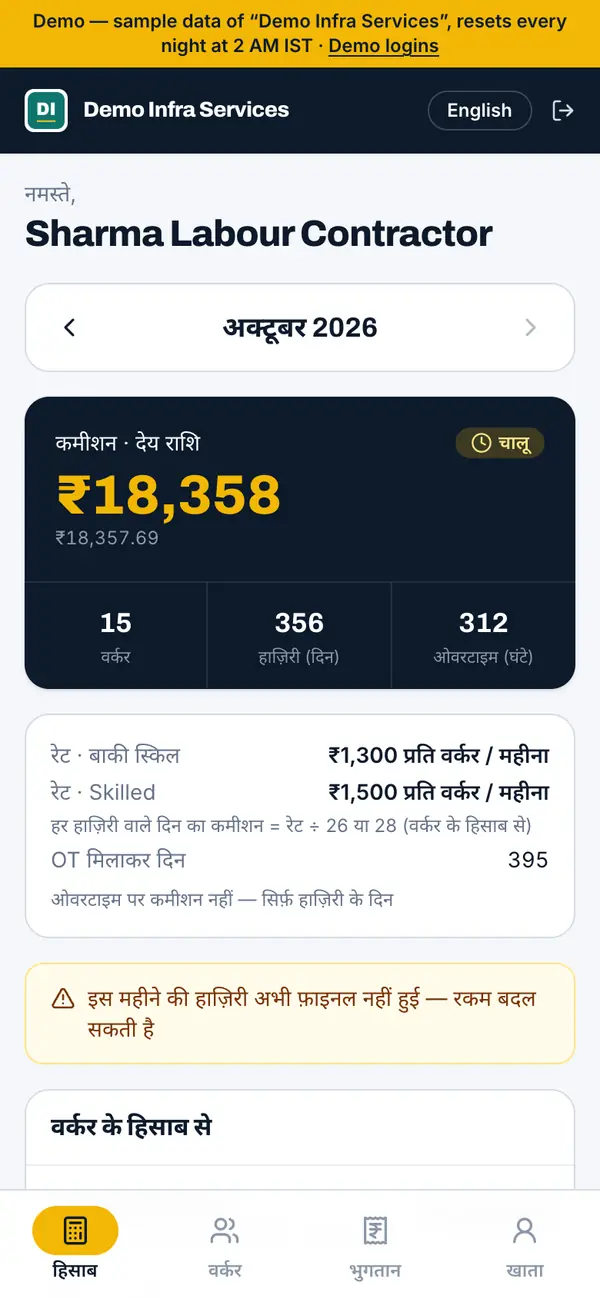
- Commission (हिसाब) — commission payable this month, workers, present days and OT, worker-wise.
- Workers — their workers, with attendance and salary.
- Payments — payments, TDS and challan, for matching with Form 26AS.
Supplier portal — commission for the month. Step 8: Choose what suppliers see
Open Roles & permissions → Supplier portal. You can switch off workers’ contact numbers, photos, attendance, salary, commission or payments. Salary is on at the start — switch it off if suppliers should not see it.
Tips and common mistakes
- A worker who can’t log in: check the date of birth, approval and Allow worker portal login on the worker page, and Unlock login after 5 wrong tries.
- A supplier who forgot the PIN: set a new PIN with the Supplier portal login icon on the Suppliers page.
- The worker login closes 180 days after a worker leaves.
हिंदी में
- मज़दूर yourcompany.thekaflow.com/worker/login खोलें।
- लॉगिन: Employee Code या आधार नंबर + जन्म तिथि।
- ऐप में हाज़िरी लगाएँ, छुट्टी और एडवांस माँगें, सैलरी स्लिप देखें।
- सप्लायर (ठेकेदार) मोबाइल नंबर और 6 अंक के PIN से /supplier/login पर आएँ।
- सप्लायर अपना कमीशन, मज़दूर और भुगतान देख सकता है।
Read next