How it works
A month in ThekaFlow, step by step
Har step asli screen ke saath
These are the same screens you get in the demo. Follow along with the demo logins to try each step.
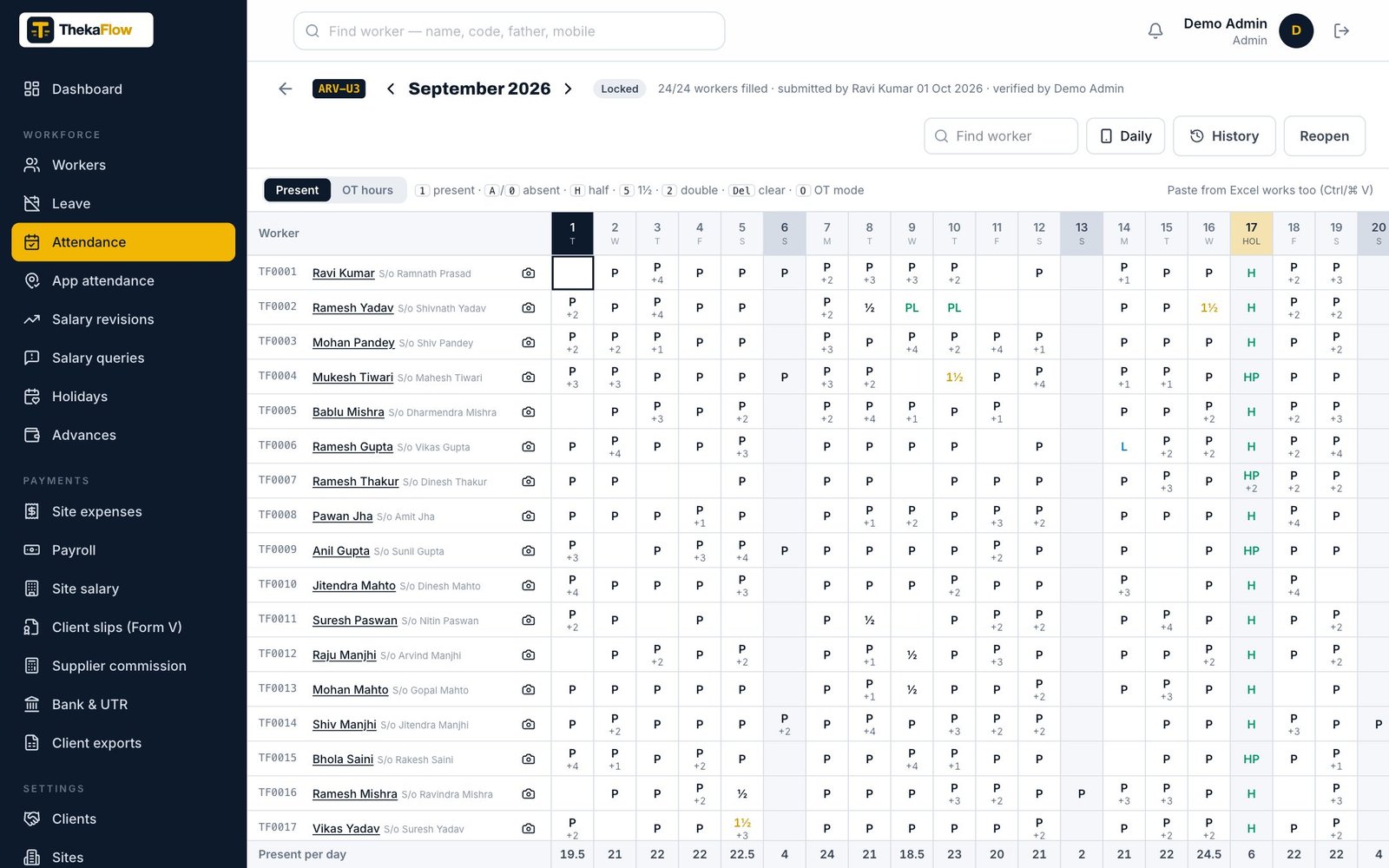
Fill attendance
Hazri lagao
One sheet per site per month. Tap a cell for P, ½, 1½ or 2, add OT hours. Weekly off, holidays and approved leave are already marked.
- Attendance → pick the site and month
- Fill or correct cells; OT in hours
- Submit at month end → Admin verifies and locks
Workers mark attendance from the app
Worker apne phone se hazri lagaye
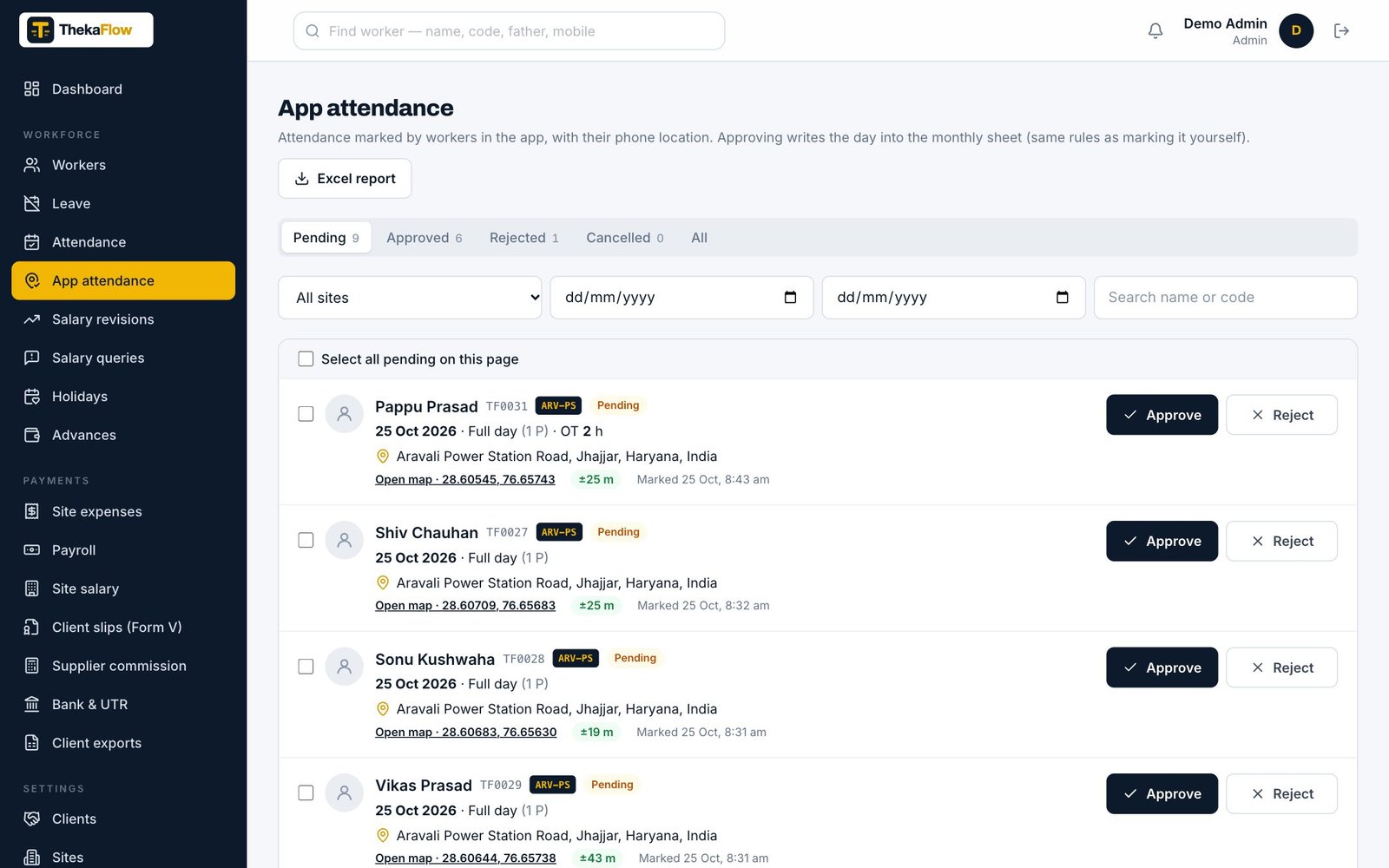
Workers tap one big button; the phone’s location and time are saved. The supervisor approves in bulk — only then it goes into the sheet.
- Worker app → हाज़िरी → duty + OT
- Supervisor → App attendance → approve / reject with reason
- Approved entries fill the sheet automatically
Advances
Advance maango, mano, bhejo
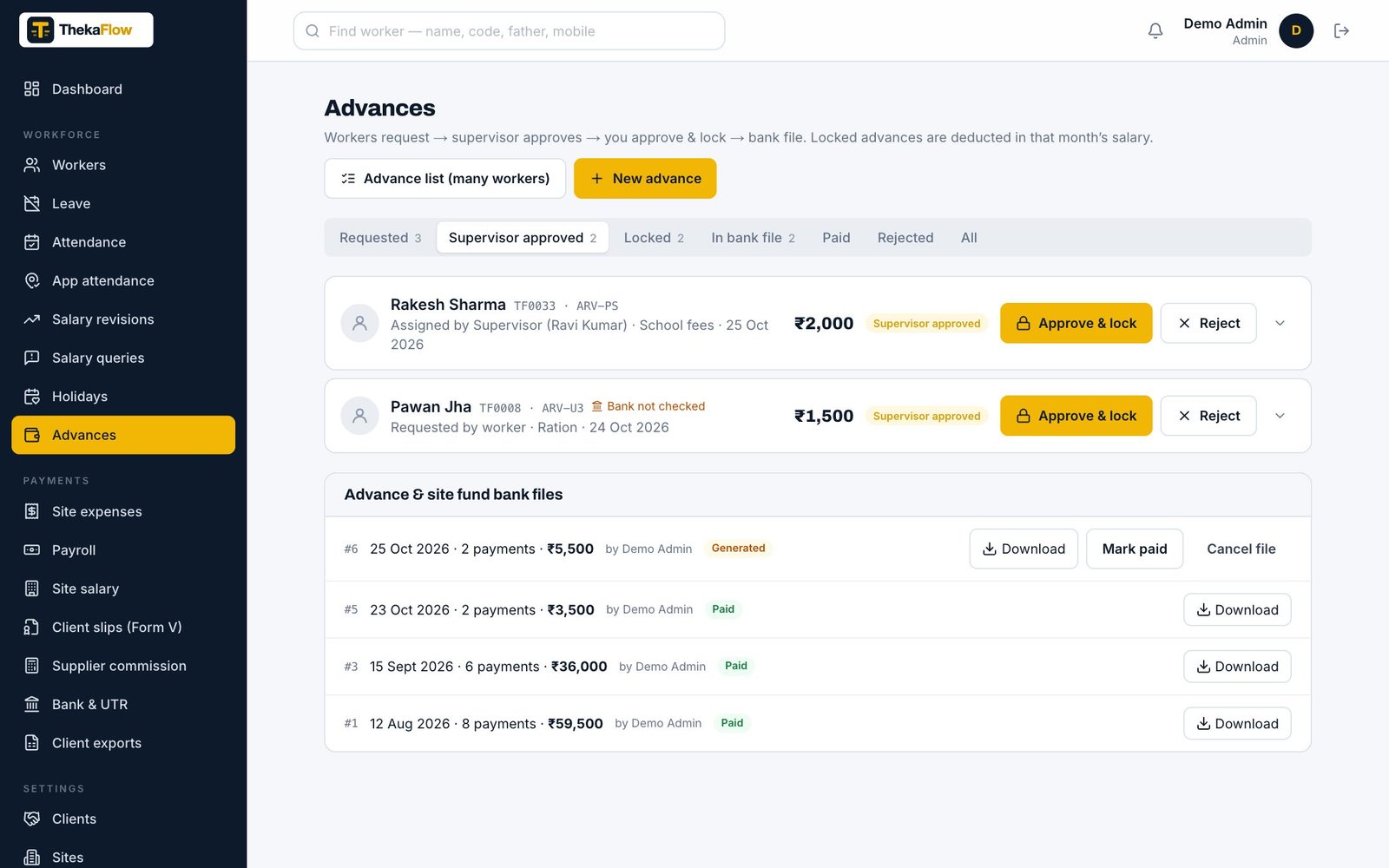
The worker asks in the app (or the supervisor gives one). Supervisor approves, Admin locks, it goes in the next bank file. Recovery happens in payroll.
- Limit = earned till today
- Above limit only by Admin with a reason
- Every step on the advance’s timeline
Prepare and approve payroll
Salary ek click me
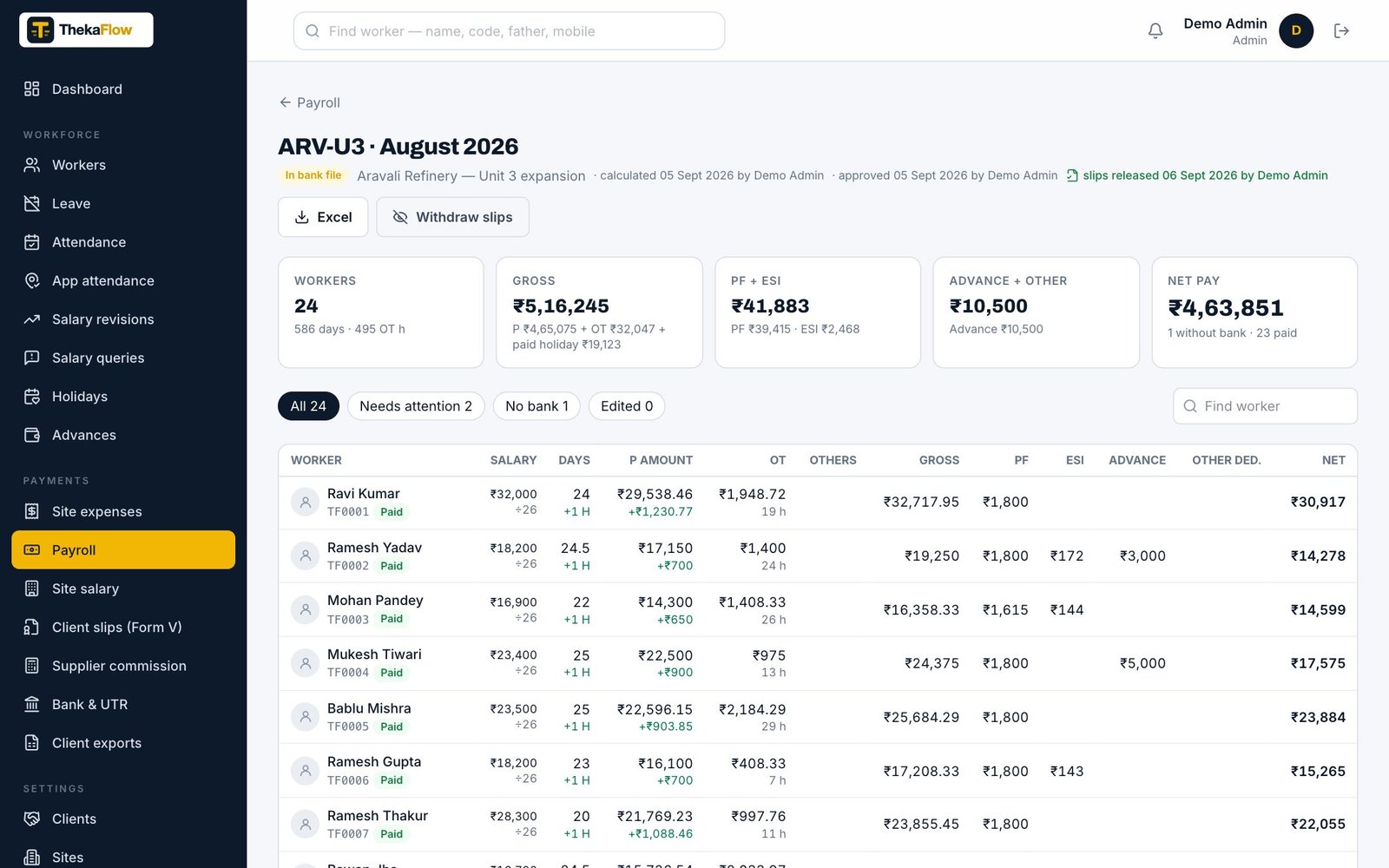
Pick site and month — wages, OT, paid leave and holidays, PF / ESI and advance recovery are calculated from attendance. Warnings show what to fix.
- Payroll → create for the month
- Check warnings (no bank, pending approval)
- Approve → release slips to workers’ phones
Bank file and UTR
Bank file banao, UTR wapas lao
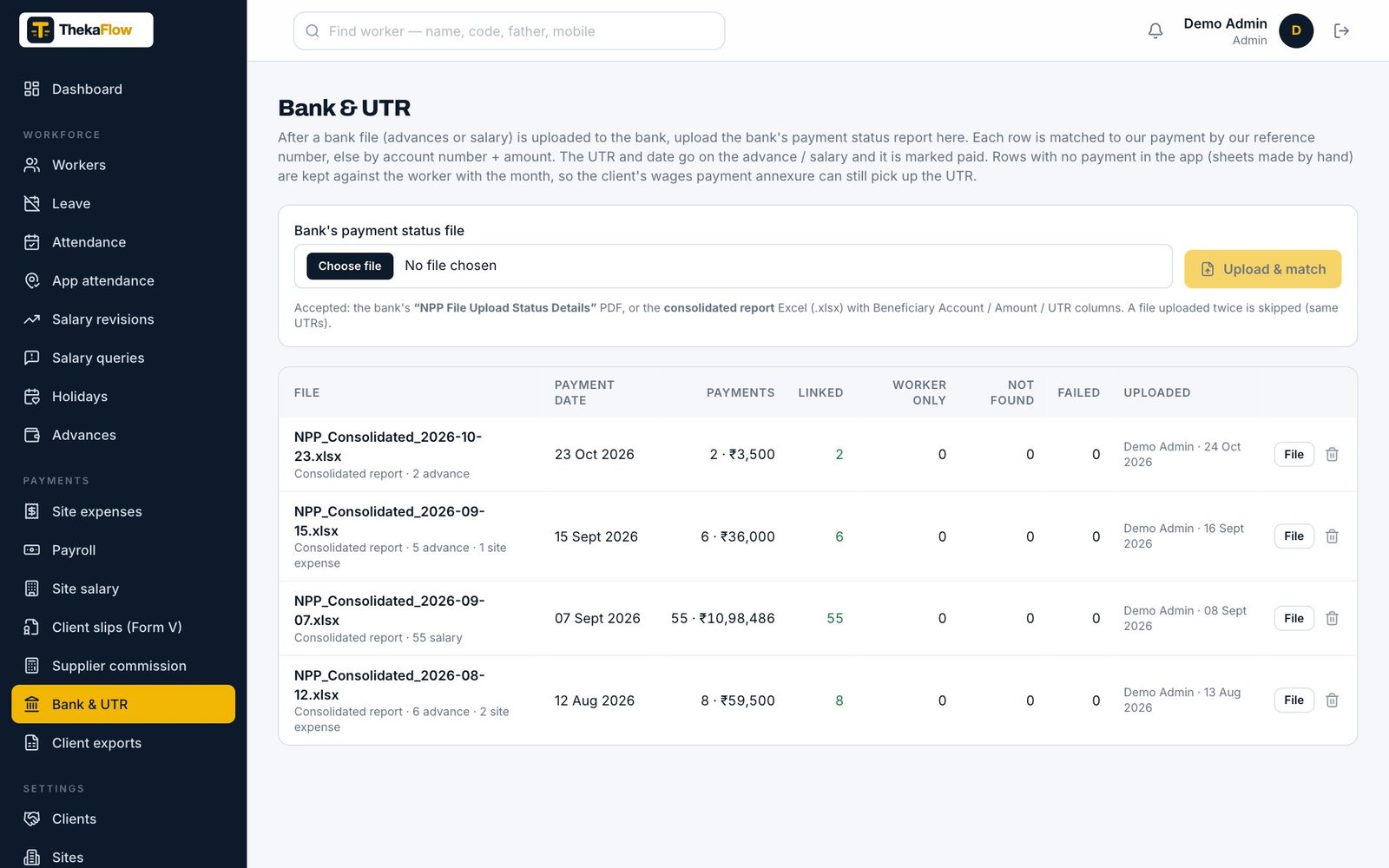
Make the bulk file in your bank’s format and upload it in net banking. Then upload the bank’s status report — UTRs attach to each payment.
- Payroll → bank file (salary) or Advances → bank file
- Upload to your bank as usual
- Bank & UTR → upload the status PDF / Excel
Worker sees the slip
Worker ko slip phone par
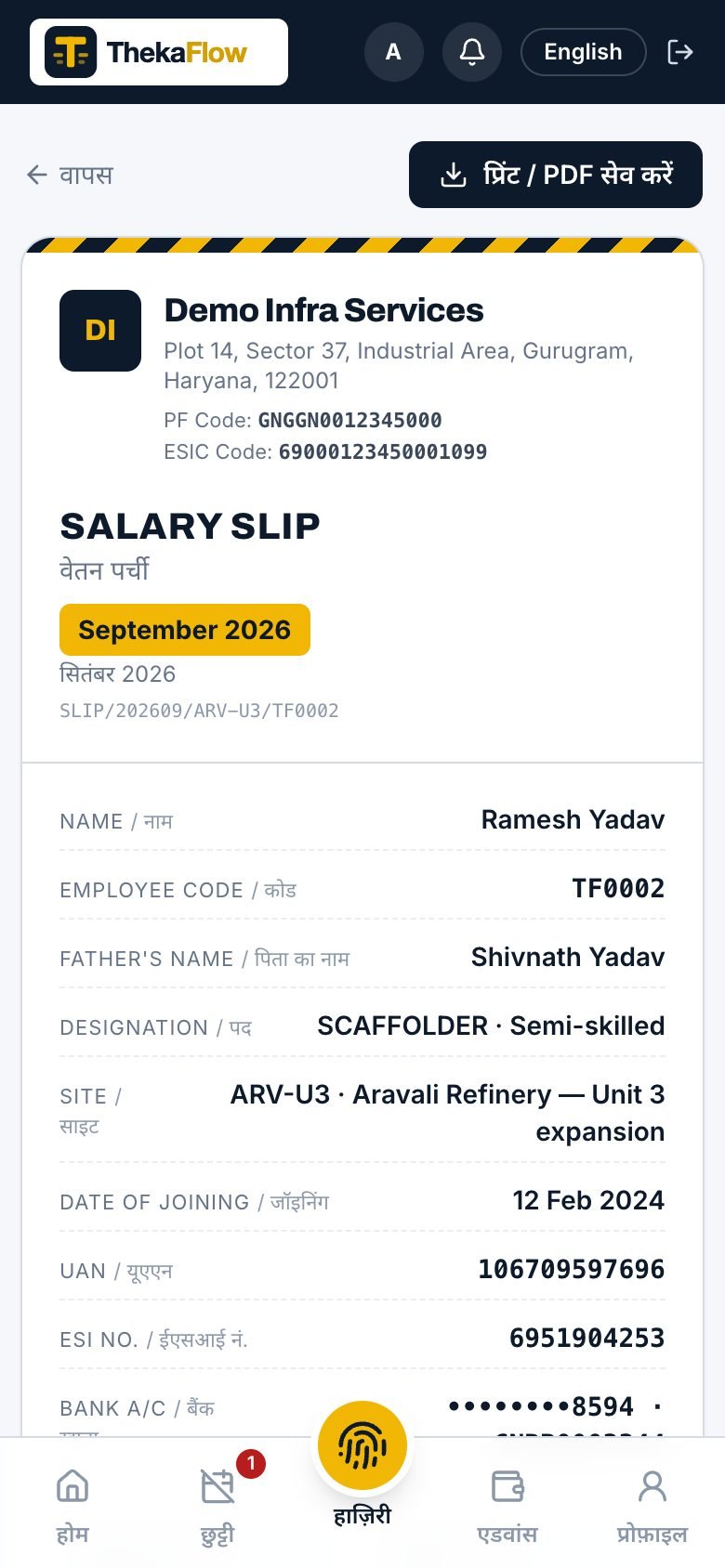
Once released, the worker sees the salary slip in Hindi or English, with PF, ESI, advance cut and the UTR of the payment.
- Notification on the phone
- Slip download / print
- Salary query if something looks wrong
Client compliance
Client ke kaagaz
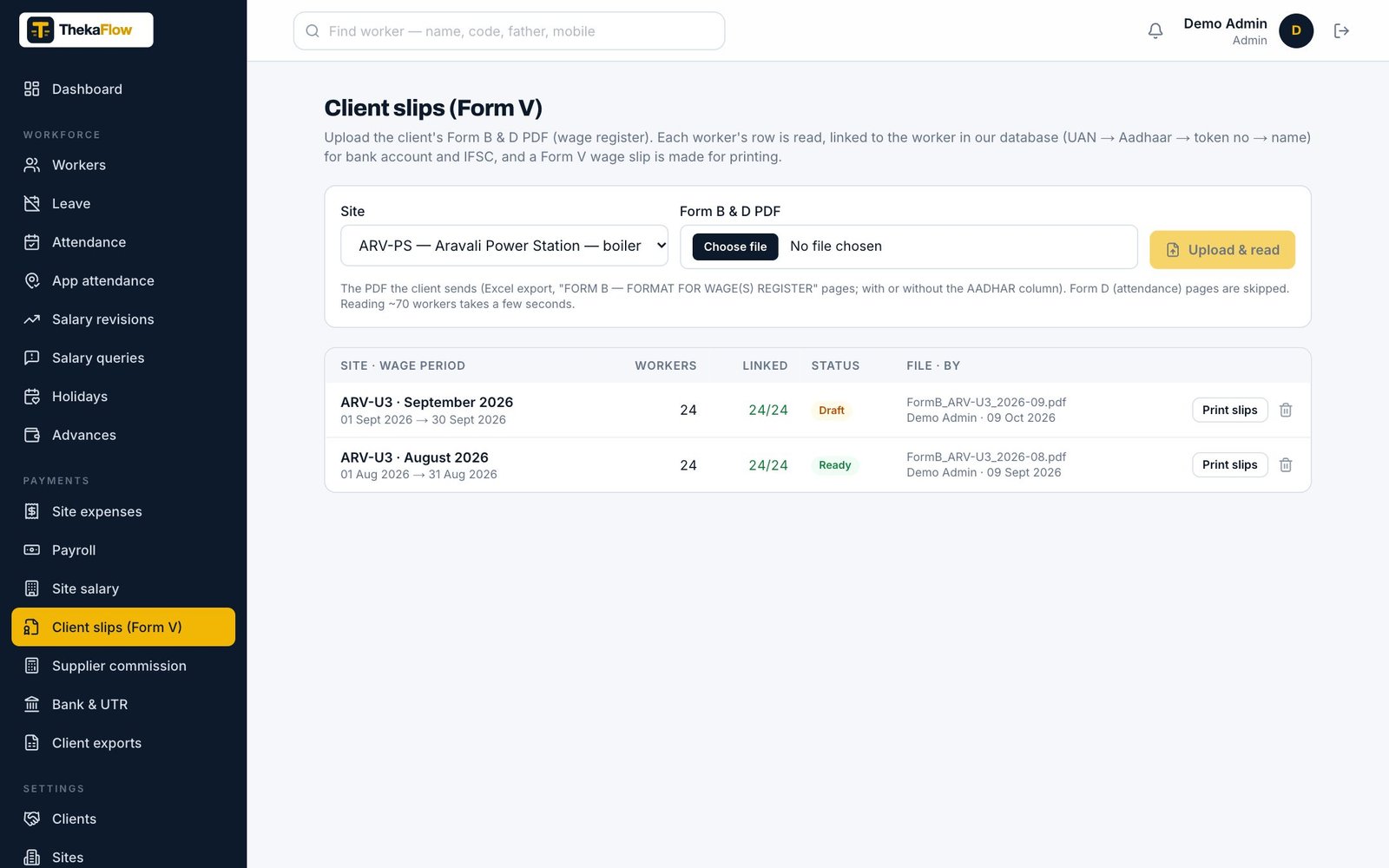
Upload the client’s Form B & D PDF: rows are matched to your workers and Form V wage slips are ready to print, with the annexure for wage payment.
- Client slips → upload PDF
- Check matches (UAN / Aadhaar / token no)
- Print Form V, download annexure with UTR