
Startup guide · Chapter 7 of 13
Attendance
Mark daily attendance and overtime, approve app attendance and leave, then submit and lock the month for payroll.
About 15 minutesChecked against the app 30 October 2026
On this page
Before you start
- Sites and workers added.
- This year’s holiday list for each site.
- Attendance cards or the site register, if you fill from paper.
Step 1: Add holidays
Click Holidays → Add holiday: Date, Holiday name (for example Diwali) and Applies to (All sites or Selected sites).
A holiday is paid (H) when the worker was present on the working day before or after. A worker who works on a holiday gets 2 days’ pay (HP).
Step 2: Fill the monthly sheet
Click Attendance, choose the month and click Open → on the site. Click a cell and use the keys:
- 1 present · A or 0 absent · H half day · 5 one and a half · 2 double · Del clear.
- Click a day number at the top to mark all empty cells of that day present.
- Hover a worker’s row and click Fill to mark all their empty working days present.
- You can also copy from Excel and paste (Ctrl / ⌘ V).
- Click Save.
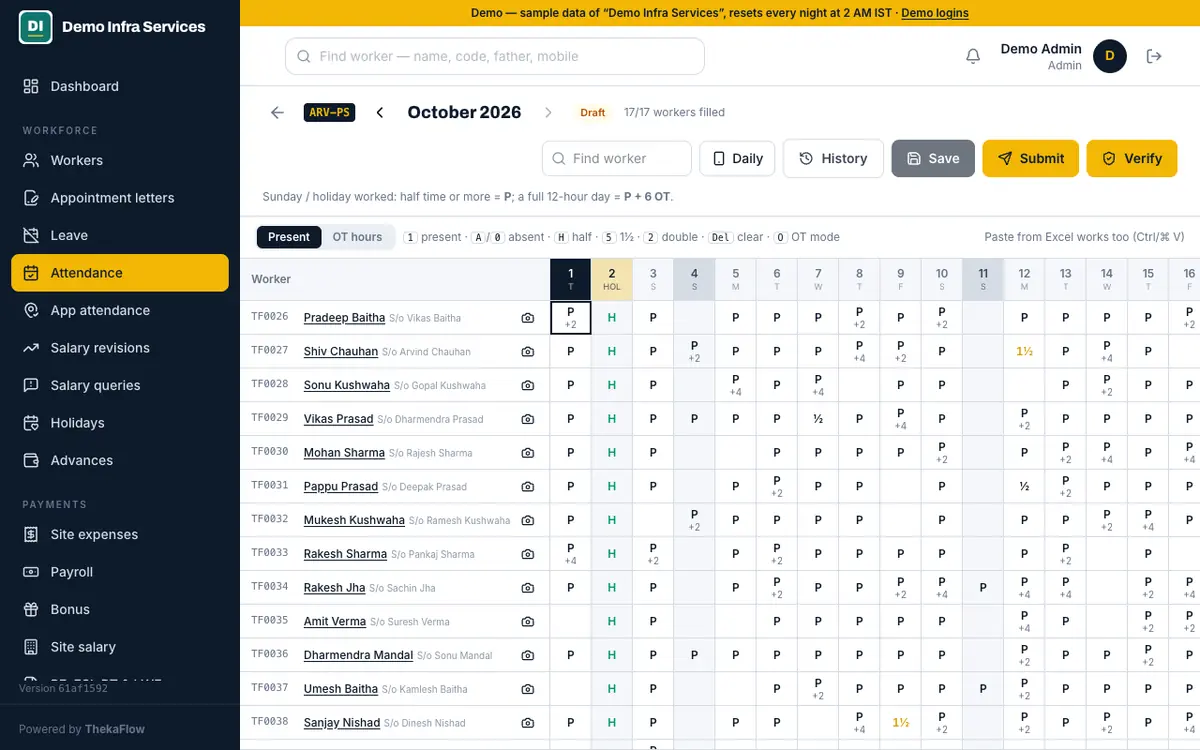
Attendance → a site → the monthly sheet. Tap to enlarge. Step 3: Add overtime
Click OT hours (or press O) and type hours, for example 2 or 1.5, then Enter. A Sunday or holiday worked for half the time or more is P; a full 12-hour day is P + 6 OT.
OT is limited to 144 hours in a quarter.
Step 4: Mark from a phone (supervisors)
Click Today’s attendance (or Daily on the sheet). Choose the site and date, tap P, ½, 1½, 2 or A for each worker, add OT with − / +, or tap All present. Then Save.
Step 5: Approve app attendance
Plan: Starter plan and above (worker app).
Workers can mark their own day in the worker app with their phone location. Click App attendance → Pending. Each row shows the place, “At site · 80 m” or Outside site · 1.2 km in red, and a map link.
Click Approve (it writes the day into the sheet) or Reject with a reason. Outside the site is only a warning — you decide.
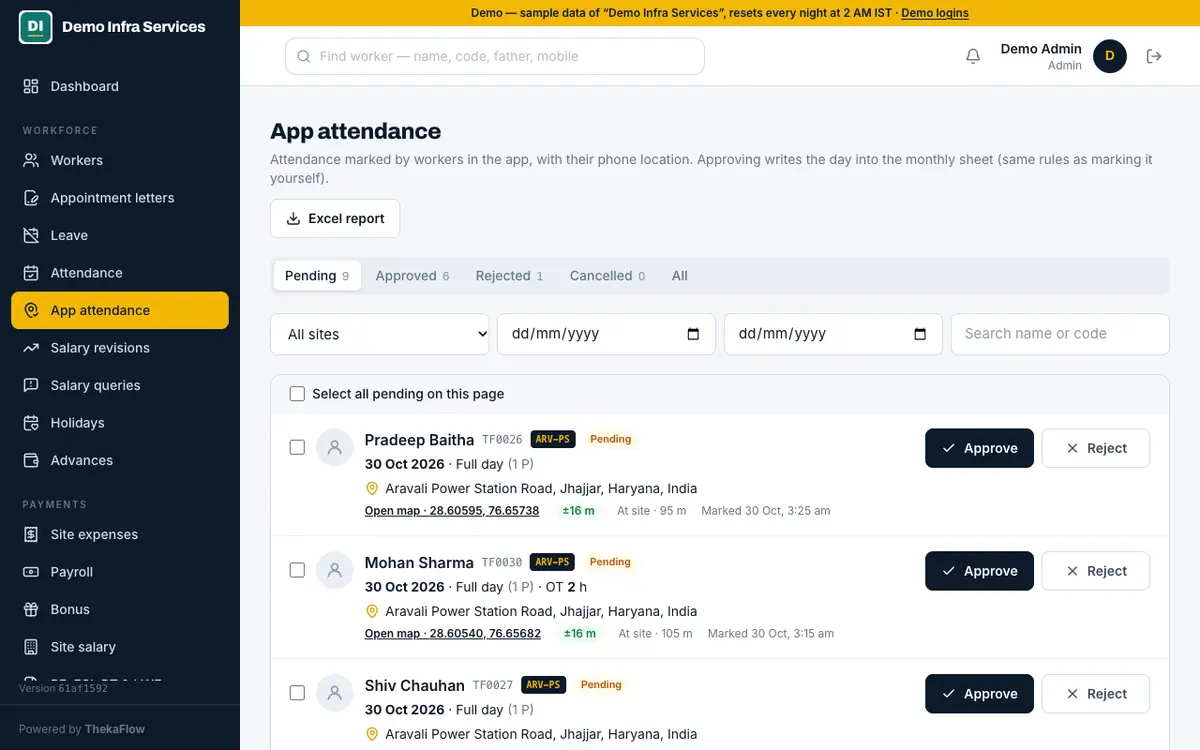
App attendance — pending requests with the distance from the site. Tap to enlarge. Step 6: What the worker sees
In the app the worker taps the big हाज़िरी (Attendance) button, chooses Half day / Full day / 1½ days / Double duty, adds OT and taps Mark attendance. It waits for the supervisor’s approval.
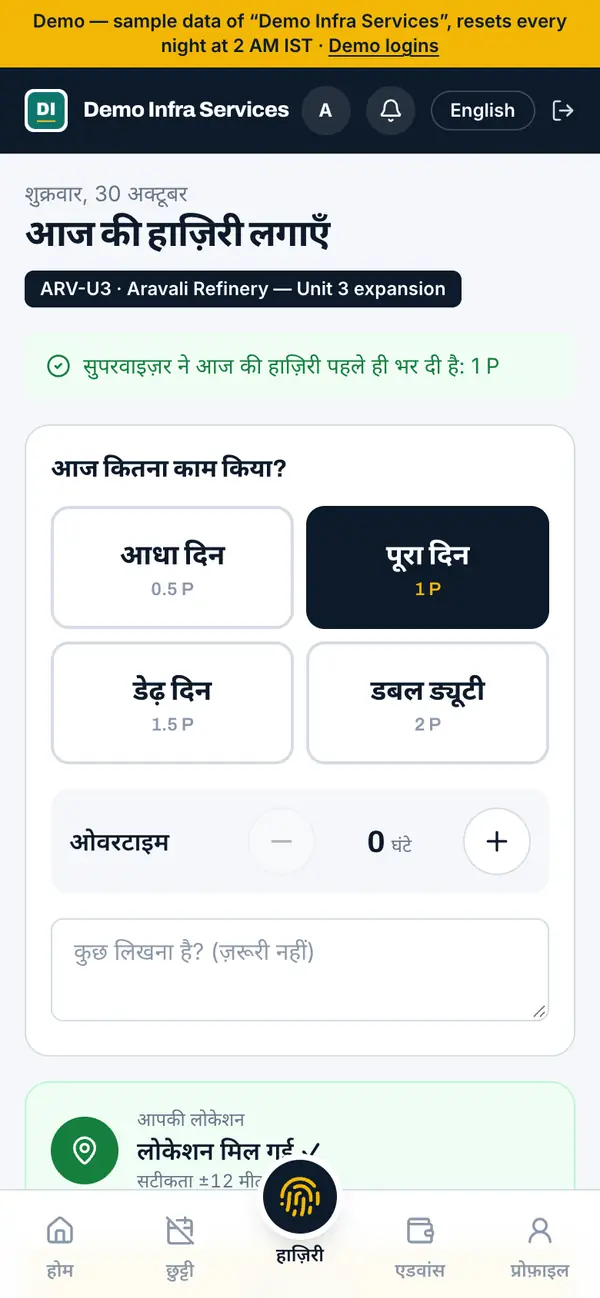
Worker app — marking today’s attendance (Hindi). Step 7: Approve leave
Workers apply for leave in the app. Click Leave → Requests. The supervisor approves first; the Admin then chooses Paid leave or Unpaid leave and approves.
Leave balance shows each worker’s annual leave: 1 day for every 20 days worked, after 180 days in a year, up to 30 days carried forward.
The law:Annual leave: 1 day for every 20 days workedGive one rest day every week
Step 8: Submit, verify and lock
- The supervisor clicks Submit when the month is complete — by the 4th of the next month.
- The Admin checks it and clicks Verify, or Send back with a note on what to correct.
- The Admin clicks Lock. Payroll can be approved only for a locked month.
- Need a change after locking? Reopen with a reason.
Tips and common mistakes
- There is no Excel file upload for attendance — copy and paste from Excel into the sheet instead.
- By default a supervisor cannot change a saved P / A, only add OT. The Admin can allow it in Roles & permissions.
- Changes after submitting ask for a reason, and History shows every change.
- A day in an approved leave that was also marked present shows a warning — approving the leave removes that attendance.
हिंदी में
- Holidays में साल की छुट्टियाँ जोड़ें।
- Attendance → साइट खोलें → 1 = हाज़िर, A = गैरहाज़िर, H = आधा दिन, फिर Save।
- OT hours पर क्लिक करके ओवरटाइम घंटे भरें।
- App attendance में मज़दूरों की ऐप वाली हाज़िरी Approve करें — साइट से दूरी दिखती है।
- महीना पूरा होने पर Submit → Verify → Lock करें, तभी पेरोल बनेगा।
Read next